 SweeperX
Large files and archives, sorted by what they cost you
Everything outside your photo library lives under On My iPhone in the Files app, and almost nobody browses it. Apps write there: downloads, exports, offline caches you explicitly asked for, archives you unpacked once. Individually none of it looks like a problem. Collectively it is often several gigabytes, and unlike photos there is rarely any sentiment attached.
What it scans
The default pass walks the folders under “On My iPhone” that apps have made visible and lists what it finds sorted by size, largest first. That order is the whole feature. A list of two thousand files alphabetically is a chore; the same list with the four files that account for half the total at the top is a two-minute job.
Archives get their own treatment. A .zip you unpacked is pure duplication —
the contents are already on the phone, and the archive is a second copy you have no use for.
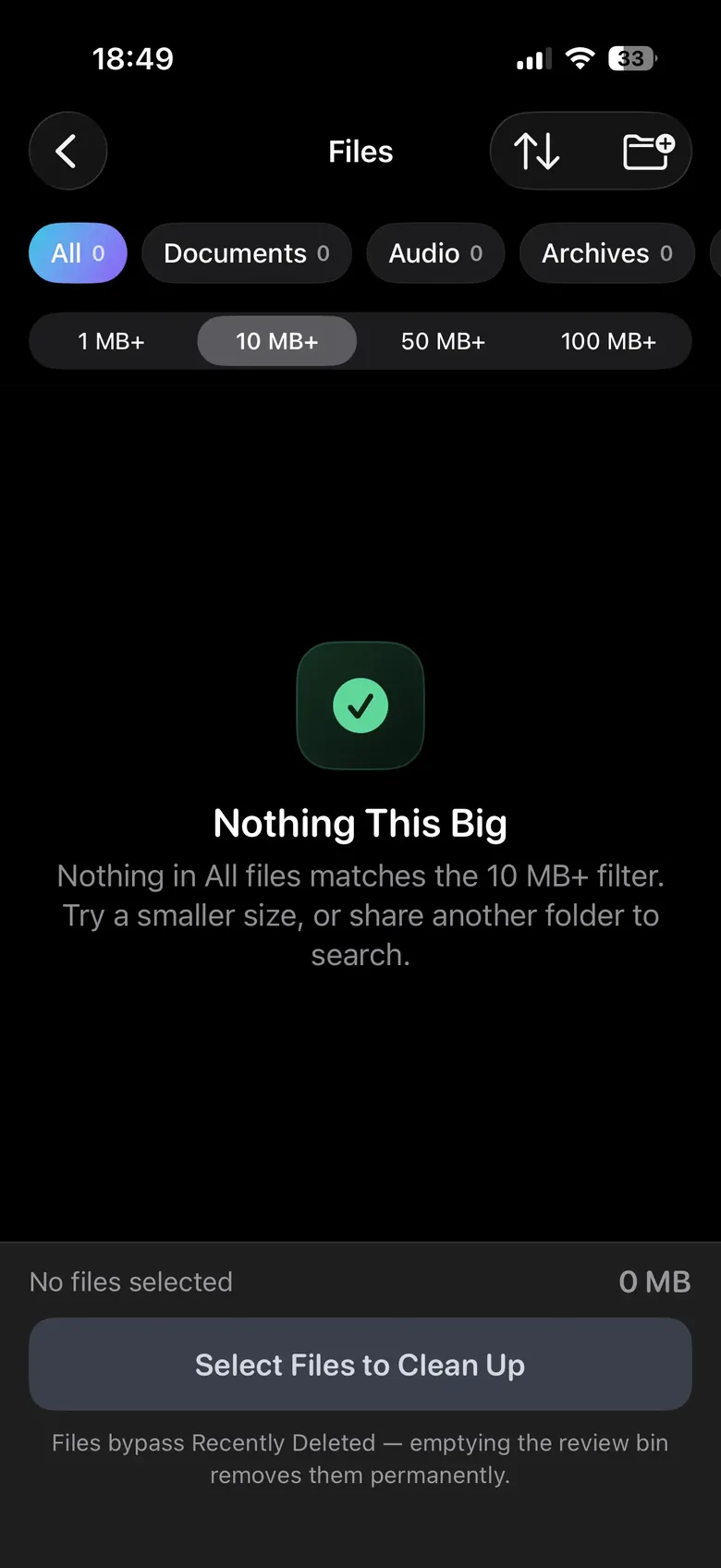
Add your own folders
You are not limited to what the app decides to look at. You can add any folder you can reach and have it scanned alongside the defaults. If a particular app writes somewhere the default pass does not cover, or you keep a working folder that grows without you noticing, point the scan at it and it stays in the rotation.
This matters more than it sounds, because file layout on iOS varies by app and by version. A fixed list of locations goes stale. A list you can extend does not.
Where these files go, which is not Recently Deleted
Photos and videos removed from your library land in the Photos app’s Recently Deleted album and stay recoverable for 30 days. Files removed from “On My iPhone” do not. The Files app has no equivalent album, so those go immediately and permanently.
SweeperX stages them for review like everything else, and states this plainly at the point of confirmation rather than in a help page you would read afterwards. It is the one place in the app where confirming really is the last step, and the app treats it that way.
What it will not do
- It will not reach into another app’s private storage. iOS does not permit that for any third-party app, ours included. To clear an app’s internal cache, offload or reinstall it from Settings → General → iPhone Storage.
- It will not delete System Data. That category belongs to iOS and no app can touch it. Anything advertising otherwise is describing something that cannot happen.
- It will not judge for you. It sorts by size and shows you what it found. Whether a 1.2 GB file matters is not a question software should be answering.
Read next: How to Find the Largest Files on Your iPhone — including how to do it with no app at all, using what iOS already gives you.