 SweeperX
How to Check Whether a Cleaner App Is Uploading Your Photos
Why the App Store listing isn’t enough
Storage cleaners are among the least trusted apps on the App Store, and the distrust is earned. The category is full of apps that charge weekly for a job that finishes, that inflate the amount of “junk” they claim to find, and — the part that actually matters — that send your photo library to a server for analysis.
The problem is that every app in the category says the same reassuring things. “Your privacy is our priority.” “Secure and private.” “We never share your data.” Those sentences cost nothing to write and mean nothing on their own. Note that “we never share your data” is not the same claim as “we never send your data” — an app can upload every photo you own to its own servers and still say, truthfully, that it shares nothing with third parties.
So don’t read the claims. Test them. Everything below uses tools already on your iPhone.
Test 1: Airplane Mode
This is the fastest and most revealing test, and it needs no technical knowledge at all.
- Open Control Centre and turn on Airplane Mode.
- Make sure Wi-Fi is also off — on recent iOS versions Wi-Fi can stay enabled after Airplane Mode goes on, which would defeat the test.
- Open the cleaner app and use it normally. Run a scan. Open the duplicate finder. Let it do the thing you bought it for.
What the results mean. If the app works exactly as it does online, then the work is happening on your device. It cannot be sending your photos anywhere, because there is nowhere for them to go.
If instead you get a spinner that never resolves, a “no internet connection” error, or a scan that silently returns nothing, then the app needs a server to do its job. That does not automatically mean your photos are being uploaded — it might be checking a licence or fetching an ad — but it means the app has a network dependency in the middle of a task that does not need one, and you now have a specific question to ask about it.
One honest caveat. Some apps queue uploads while offline and send them the moment you reconnect. Airplane Mode proves the processing is local; it does not by itself prove nothing is sent later. That is what the next test is for.
Test 2: The App Privacy Report
This is the strongest tool available to a non-technical user, and remarkably few people know it exists. iOS can log every domain that every app on your phone contacts, and show you the list.
Turning it on
- Go to Settings → Privacy & Security.
- Scroll to the bottom and tap App Privacy Report.
- Tap Turn On App Privacy Report.
It only records from the moment you switch it on, so turn it on first, then go and use the app you want to check. Give it a few days of normal use for a fair picture.
Reading it
The report has four sections. Two matter here:
- Data & Sensor Access — when each app used your photos, contacts, camera, microphone or location.
- App Network Activity — every domain each app contacted, and when.
Find the cleaner app under App Network Activity. If it lists domains, those are the servers it talked to. You will not see what was sent — the report shows destinations, not contents — but the destinations are informative on their own. Analytics and advertising domains are usually recognisable by name, and an app contacting a dozen of them is telling you what kind of business it is in.
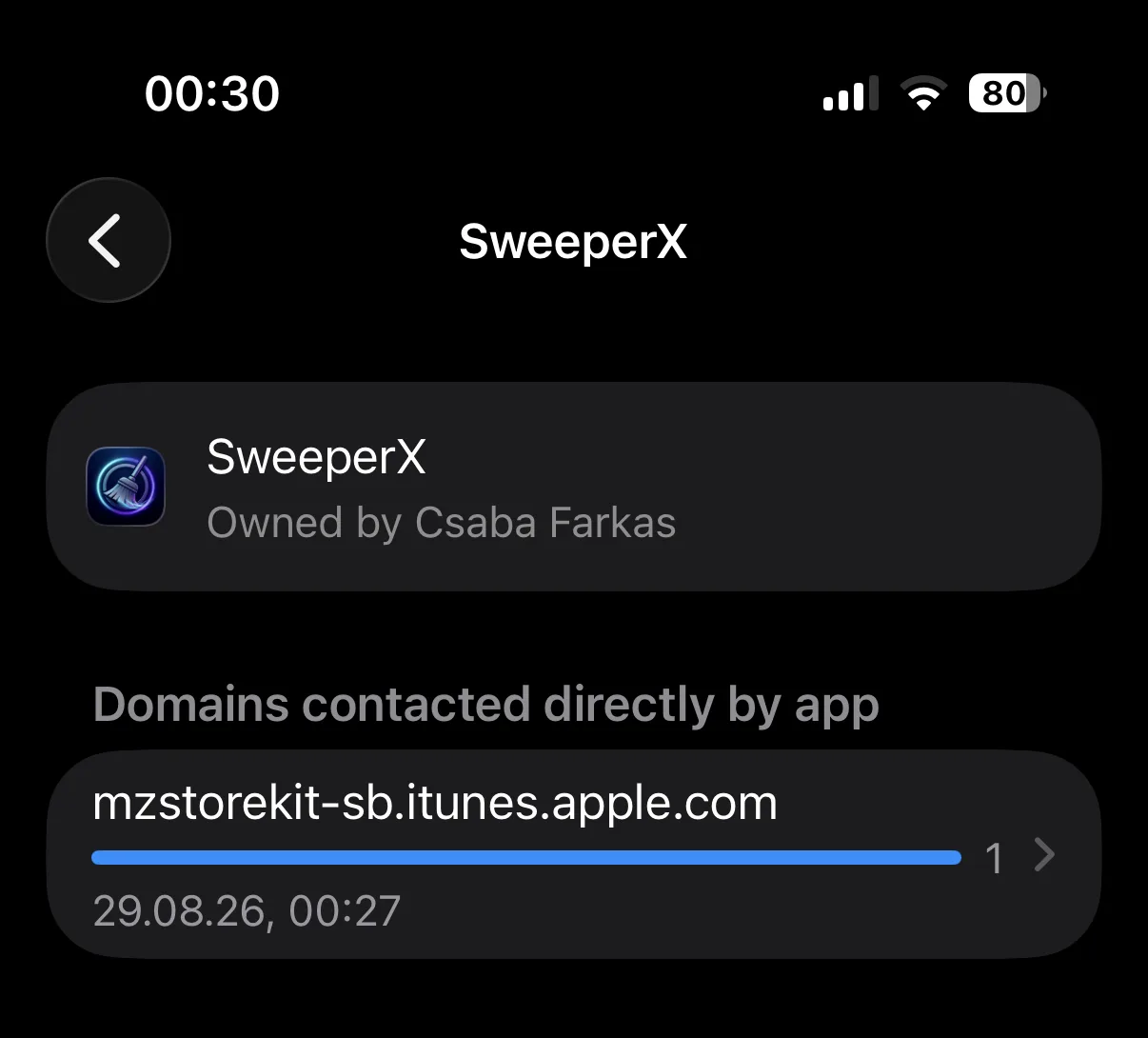
The result worth looking for is an app with nothing but Apple in the list. An app that sells anything will show an Apple StoreKit host, because that is where the purchase goes; an app that shows nothing else has contacted no other domain. Not fewer than average — none. That is not a claim the developer is making; it is an observation iOS made on your behalf.
Note that Websites Visited may list domains for an app that opened a web page — a support link or an App Store page, for instance. That is different from the app itself making requests, and it is worth reading the two sections separately.
Test 3: Read the privacy label properly
Every App Store listing has an App Privacy section. It is useful, and it is also widely misread. Here is what the three headings actually mean:
- Data Used to Track You — data shared with other companies for advertising or measurement across apps and websites.
- Data Linked to You — data tied to your identity or account.
- Data Not Linked to You — data collected but, the developer says, not tied to you.
The label to look for is “Data Not Collected”, which means the developer has declared that the app collects nothing in any of those categories.
Two limits you should know. First, the label is self-declared. Apple requires it, checks it at review, and can pull an app for lying, but it is a declaration rather than a measurement. Second, “not collected” is about collection, not transmission in every conceivable sense — which is precisely why you run it alongside the App Privacy Report rather than instead of it. A declaration that matches what iOS observed is worth far more than either on its own.
Test 4: The privacy manifest
Since iOS 17, Apple requires apps and many third-party SDKs to ship a privacy manifest — a file that declares what data types the app collects, why, and which “required reason” APIs it uses. Apple checks these at review, and an app whose manifest contradicts its behaviour is a review problem for the developer.
You cannot read a manifest from your phone, and most people will never need to. What you can do is ask. A developer who has nothing to hide can paste their manifest into an email in about four seconds, and an empty collected-data array is a short and unambiguous document. A developer who cannot or will not produce it has told you something too.
The same applies to third-party SDKs. Analytics and advertising SDKs bring their own manifests and their own data collection, which is why “we don’t collect anything” and “we use three analytics providers” are contradictory statements even when the developer believes both.
When network access is legitimate
It would be unfair to treat every network request as evidence of wrongdoing, and doing so would make this method useless. Plenty of apps contact a server for reasons that have nothing to do with your photos.
- Purchases and restores. Anything involving the App Store talks to Apple. An app that works offline except when you buy or restore a purchase is behaving correctly — that request goes to Apple, not to the developer, and carries no photo data.
- iCloud downloads. If you use iCloud Photos with Optimise iPhone Storage, the full-resolution original may not be on the device. Fetching it is iOS retrieving your file from your iCloud account, on the app’s behalf. The photo is not being sent to a developer’s server; it is being pulled down from yours.
- Crash reporting and analytics. Common, usually disclosed, and not the same thing as uploading photos. It is still data collection, and it should be reflected on the privacy label — if it is not, that mismatch is the finding.
The distinction worth drawing is between an app that can work offline and one that cannot. If the core task — scanning, comparing, grouping — completes with no connection, the photo analysis is local no matter what else the app talks to. If the core task stalls without a connection, the analysis is happening somewhere else, and somewhere else means your photos travelled.
Red flags in the listing itself
Some things you can spot before you install anything, just by reading the App Store page carefully.
- “AI-powered” analysis with no explanation of where it runs. On-device machine learning is entirely normal on modern iPhones and worth saying plainly. Vagueness about where the processing happens is usually deliberate.
- A privacy label that lists photo or user-content collection while the description insists everything is private. The label is the part Apple checks.
- A weekly price for a task that finishes. Not a privacy signal by itself, but it tells you the business needs recurring revenue, which shapes every other decision the app makes. There is a whole guide on that pattern.
- Reviews mentioning surprise charges or uploaded photos. Sort by most recent and most critical rather than reading the featured ones.
- No named developer, or a shell name with no website. You cannot email a question to a company that has no address. Being able to identify who wrote the software is itself a form of accountability.
The permission that matters most
Before any of this, check what you have granted. Settings → Privacy & Security → Photos shows every app with photo access and at what level.
- Limited Access — the app sees only the specific photos you picked.
- Full Access — the app sees your entire library.
A duplicate finder genuinely needs full access to do its job: it cannot find copies of pictures it is not allowed to look at. So full access is not itself a red flag. The question is what the app does with that access, which is what the tests above answer.
If you want to be careful while you evaluate an app, grant Limited Access to a few dozen photos first, run the tests, and upgrade to Full Access only once you are satisfied.
The ten-minute checklist
- Turn on the App Privacy Report before you install anything.
- Install the app. Grant Limited photo access to start with.
- Put the phone in Airplane Mode, with Wi-Fi off. Use the app properly.
- Does everything still work? Good sign. Spinner or error? Ask why.
- Turn connectivity back on and use the app normally for a day or two.
- Open the App Privacy Report and find the app under App Network Activity.
- No entry at all is the best possible result.
- Cross-check against the App Store privacy label. Do the two agree?
- If anything is unclear, email the developer and ask for the privacy manifest.
- Decide with evidence rather than with adjectives.
What a clean result looks like
An app that passes all four tests works in Airplane Mode, shows nothing but Apple’s own purchase host in App Network Activity, declares “Data Not Collected”, and has a manifest with an empty collected-data list. Those four facts agree with each other, and none of them depends on believing a marketing sentence.
That is the standard worth holding any cleaner app to, including this one. SweeperX is built to pass it: it contains no networking code at all, which is why every feature except the one-time purchase works offline, and why the only domain in its App Privacy Report entry is Apple’s StoreKit host. If you ever find another one there, we would genuinely like to know — info@syleniainc.com. We would rather correct a claim than defend it.
Next: iPhone Cleaner Apps and the Subscription Trap — why a job that finishes gets sold by the week, and what it costs.